> ## Documentation Index
> Fetch the complete documentation index at: https://rllm-org-rllm-19-feat-renderer-parser-backend.mintlify.site/llms.txt
> Use this file to discover all available pages before exploring further.
# rLLM CLI
> Evaluate, train, and monitor agents from the command line and web dashboard
rLLM provides two interfaces for working with agents: a **CLI** for running evaluations and training from the terminal, and a **web UI** for monitoring runs and exploring results.
## CLI
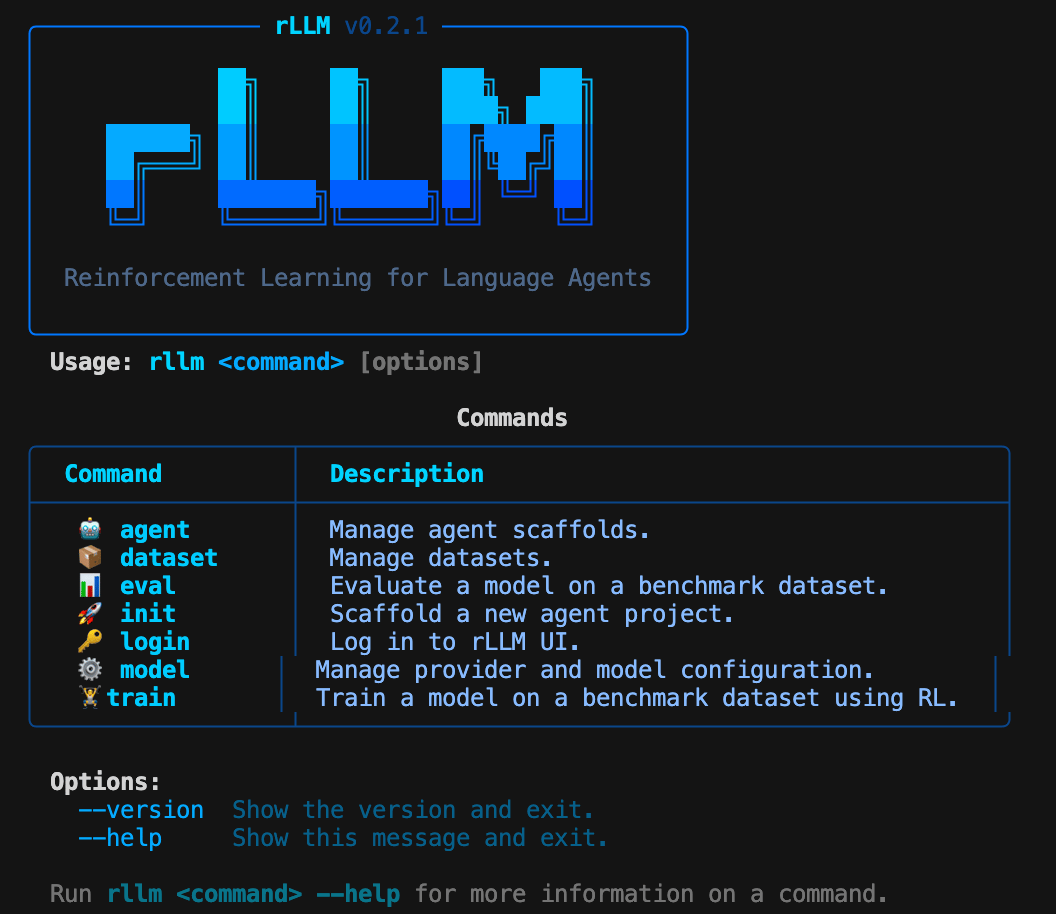 The `rllm` CLI is the primary way to evaluate and train agents. Datasets are auto-pulled from HuggingFace, agents and evaluators are resolved from the built-in catalog, and a local LiteLLM proxy handles API routing.
### First-time setup
Configure your model provider before running evaluations or training:
```bash theme={null}
rllm model setup
```
This walks you through selecting a provider (OpenAI, Anthropic, etc.), entering your API key, and choosing a default model. Configuration is saved to `~/.rllm/config.json`.
### Core commands
```bash theme={null}
rllm eval gsm8k # Evaluate on a benchmark
rllm train gsm8k --model Qwen/Qwen3-8B # Train with RL
rllm init my-agent # Scaffold a new agent project
rllm dataset list --all # Browse available datasets
rllm model setup # Configure model providers
```
### Typical workflow
```bash theme={null}
rllm model setup
```
```bash theme={null}
rllm dataset list --all
```
```bash theme={null}
rllm eval gsm8k
```
```bash theme={null}
rllm train gsm8k --model Qwen/Qwen3-8B
```
### Global behavior
* **Auto-pull**: Datasets are automatically downloaded from HuggingFace when first referenced by `eval` or `train`.
* **LiteLLM proxy**: When no `--base-url` is provided, `eval` and `train` start a local LiteLLM proxy automatically, routing requests to your configured provider.
* **Lazy loading**: Commands are loaded on-demand, so `rllm --help` starts instantly regardless of installed extras.
## Web UI
The rLLM web UI at `ui.rllm-project.com` provides a dashboard for monitoring training runs and exploring evaluation results.
### Logging in
Authenticate with the hosted UI from the CLI:
```bash theme={null}
rllm login
```
This opens a browser for authentication and stores your API key locally in `~/.rllm/config.json`. You can also set the `RLLM_API_KEY` environment variable directly.
### Enabling UI logging
Add the `--ui` flag to `eval` or `train` to stream live data to the dashboard:
```bash theme={null}
rllm eval gsm8k --ui
rllm train gsm8k --model Qwen/Qwen3-8B --ui
```
When enabled, the CLI sends metrics, episode data, and step-by-step execution traces to the UI backend in real time.
### What you can see
The UI provides:
* **Episode explorer**: Browse individual episodes with full trajectory and step-level detail
* **Metrics dashboard**: Track rewards, success rates, and custom signals across training runs
* **Trajectory viewer**: Inspect agent reasoning chains and tool calls step by step
To use a self-hosted UI instance, set the `RLLM_UI_URL` environment variable to your instance URL.
The `rllm` CLI is the primary way to evaluate and train agents. Datasets are auto-pulled from HuggingFace, agents and evaluators are resolved from the built-in catalog, and a local LiteLLM proxy handles API routing.
### First-time setup
Configure your model provider before running evaluations or training:
```bash theme={null}
rllm model setup
```
This walks you through selecting a provider (OpenAI, Anthropic, etc.), entering your API key, and choosing a default model. Configuration is saved to `~/.rllm/config.json`.
### Core commands
```bash theme={null}
rllm eval gsm8k # Evaluate on a benchmark
rllm train gsm8k --model Qwen/Qwen3-8B # Train with RL
rllm init my-agent # Scaffold a new agent project
rllm dataset list --all # Browse available datasets
rllm model setup # Configure model providers
```
### Typical workflow
```bash theme={null}
rllm model setup
```
```bash theme={null}
rllm dataset list --all
```
```bash theme={null}
rllm eval gsm8k
```
```bash theme={null}
rllm train gsm8k --model Qwen/Qwen3-8B
```
### Global behavior
* **Auto-pull**: Datasets are automatically downloaded from HuggingFace when first referenced by `eval` or `train`.
* **LiteLLM proxy**: When no `--base-url` is provided, `eval` and `train` start a local LiteLLM proxy automatically, routing requests to your configured provider.
* **Lazy loading**: Commands are loaded on-demand, so `rllm --help` starts instantly regardless of installed extras.
## Web UI
The rLLM web UI at `ui.rllm-project.com` provides a dashboard for monitoring training runs and exploring evaluation results.
### Logging in
Authenticate with the hosted UI from the CLI:
```bash theme={null}
rllm login
```
This opens a browser for authentication and stores your API key locally in `~/.rllm/config.json`. You can also set the `RLLM_API_KEY` environment variable directly.
### Enabling UI logging
Add the `--ui` flag to `eval` or `train` to stream live data to the dashboard:
```bash theme={null}
rllm eval gsm8k --ui
rllm train gsm8k --model Qwen/Qwen3-8B --ui
```
When enabled, the CLI sends metrics, episode data, and step-by-step execution traces to the UI backend in real time.
### What you can see
The UI provides:
* **Episode explorer**: Browse individual episodes with full trajectory and step-level detail
* **Metrics dashboard**: Track rewards, success rates, and custom signals across training runs
* **Trajectory viewer**: Inspect agent reasoning chains and tool calls step by step
To use a self-hosted UI instance, set the `RLLM_UI_URL` environment variable to your instance URL.